Table of Contents
BBSes, file transfers and the SyncTERM list
The BBS Directory
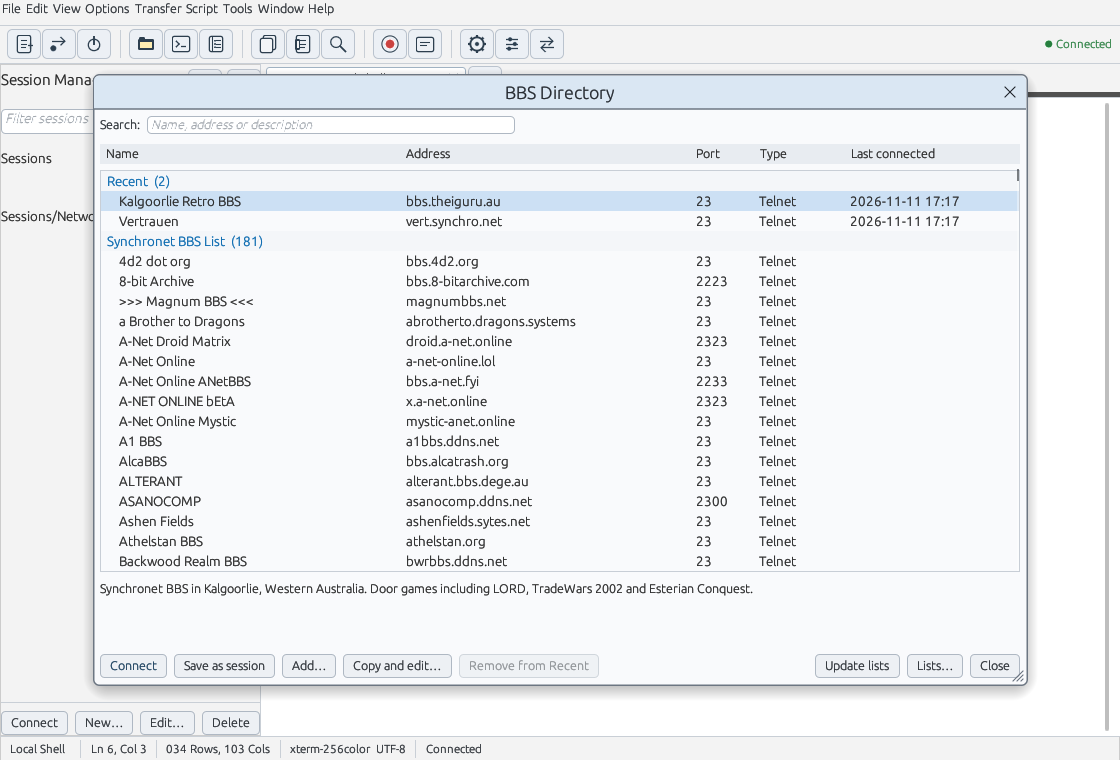
The BBS Directory is a dialling directory of BBS systems, kept apart from your saved sessions, like the one in SyncTERM. Open it with the BBS Directory button on the toolbar (the book), Tools → BBS Directory… or the command palette.
- Update lists downloads the Synchronet BBS List and the Telnet BBS Guide. Nothing is downloaded until you press it. Saltbush asks the web server to send a list only if it has changed since last time, and keeps the downloaded lists in its settings folder.
- The list is grouped: Recent (the BBSes you have called, newest first, with the Kalgoorlie Retro BBS always at the top), Your BBS systems (ones you added), then one group per list. Type in Search to find a BBS by name, address or description. Hover over a BBS, or select it, to see its description.
- Connect (or double-click) opens the BBS in a new tab with the BBS settings (CP437, ANSI-BBS, the VGA font, 80×25, BBS keys), and the BBS moves to Recent.
- Save as session adds the BBS to the Sessions folder in the Session Manager, like a session made with New Session. Use it for BBSes you want to change settings for, log in to with a credential, or use with logon scripts.
- Add… adds a BBS of your own (name, connection type, address, port, user name and description). Edit… changes it and Remove deletes it.
- A BBS from a list cannot be edited in place, because the next update would undo the change. Copy and edit… copies it to Your BBS systems to change it there. Remove from Recent puts a BBS you have called back in its list.
Where the lists come from
- The Synchronet BBS List is the list Synchronet BBSes share with each other. Saltbush downloads it from
https://retro.theiguru.au/bbslist/synchronet.lst: the Kalgoorlie Retro BBS receives the list from Synchronet's list network and exports it once a day with Telnet addresses first. Telnet shows each BBS's own login screen, where you can log in or sign up as a new user. (The copy of the list at syncterm.bbsdev.net gives SSH first, which only works if you already have an account on that BBS.) - The Telnet BBS Guide list comes from
http://syncterm.bbsdev.net/telnetbbsguide.lst. - Lists… changes the addresses, adds other lists in the SyncTERM
.lstformat, or puts the two standard lists back.
SSH-only BBSes
Some BBSes are listed for SSH only. SSH logs in with your user name on that BBS, so it only works if you already have an account there. For such a BBS (with no user name) Saltbush asks first:
- Connect with Telnet (port 23 unless you change it) shows the BBS's own login and new-user screen. Most BBSes listed for SSH also answer Telnet.
- Connect with SSH with your user name on that BBS.
Your choice is remembered for that BBS, and list updates do not change it.
When a list is updated
- New BBSes are added, and BBSes you have never called are changed or removed to match the list.
- A BBS you have called is never changed. If the list gives it a new address, the address column says “new address in list” and Use new address switches to it. If the list drops it, it stays in Recent.
- Your own BBSes are never touched.
- A BBS that is already in the directory at the same address (from another list, your own, or the Kalgoorlie Retro BBS) is not listed twice.
The directory is kept in bbs-directory.json in the settings folder (~/.config/saltbush on Linux, %APPDATA%\saltbush on Windows) and the downloaded lists in bbs-lists. Lantern Terminal 0.6.0 uses the same file format.
A new BBS session
Choose Tools → New BBS Session…, pick Telnet (or RLogin, SSH or raw TCP) and enter the BBS address. The session gets the BBS settings:
- the CP437 character set and the ANSI-BBS screen (bright bold, blinking text, CP437 pictures for control codes, the screen clears and homes like ANSI.SYS);
- the built-in VGA font, 80×25 scaled to fit the window;
- BBS keys (Backspace sends 0x08, Delete 0x7F, PC Home/End/PgUp/PgDn).
For sessions you already have, right-click them (or their folder) and choose Apply BBS Settings…, or use Options → Apply BBS Settings to This Session…. Turn on iCE colours under Session Options → Terminal for art that uses bright backgrounds.
Saltbush answers the BBS's cursor-position question, so BBSes that check for ANSI find it.
RLogin
RLogin logs straight in. Most BBSes read the RLogin “client user name” as your password, so keep it in a credential: Tools → Credentials… stores the user name in the settings and the password in the desktop password store (KDE Wallet or GNOME Keyring through secret-tool on Linux, Credential Manager on Windows). Then choose the credential on the session's RLogin page.
Zmodem
Downloads start by themselves when the BBS sends a file, into the session's download folder (File Transfer page). When a download already exists Saltbush renames, overwrites or skips it, as you choose.
Uploads start when the BBS is ready to receive: start the upload on the BBS and Saltbush asks which files to send. Transfer → Upload with Zmodem… also works: the files are sent as soon as the BBS (or rz in a shell) starts receiving. Transfer → Cancel Transfer stops a transfer on both sides.
Ymodem, Xmodem and Kermit
All four protocols are built in, on Linux and Windows.
- Ymodem and Xmodem: start the transfer on the BBS first, then choose it in the Transfer menu (Download with Ymodem, Download with Xmodem…, Upload with Ymodem…, Upload with Xmodem…). Xmodem does not send a file name, so Saltbush asks where to save the download. The session's File Transfer page chooses 128-byte or 1K Xmodem blocks.
- Kermit: downloads start by themselves when the BBS starts sending. For uploads, start the receive on the BBS, then choose Transfer → Upload with Kermit….
Import a SyncTERM list
Tools → Import BBS List… reads your SyncTERM dialling directory (syncterm.lst), shows what it found and adds the BBSes as sessions with the BBS settings. RLogin passwords in the list can be kept as credentials in the password store.
Door-game bots
Saltbush runs SyncTERM-Lua scripts unchanged. See scripting and the experimental LORD and TradeWars bots on the download page.